What does Restore on AC Power Loss do?
The firmware decides what the motherboard should do after input power disappears and later returns. Typical choices are Stay Off, Power On and Last State. Names and semantics differ by vendor and firmware version. “Last State” may not be reliable for every failure mode, so use a controlled test rather than an assumption.
How to configure and test it
- Read the PC or motherboard manual and record the current firmware settings.
- Enter BIOS/UEFI setup using the vendor's documented key.
- Locate the power-management or chipset power menu.
- Select the intended AC-recovery option and save the configuration.
- Boot normally and shut the operating system down cleanly.
- During an approved test, remove AC input, wait until stored energy has dissipated, then restore it.
- Verify POST, storage health, network access, clock and application startup.
AC Recovery, Wake-on-LAN and a power cycle are different
| Method | What it does | What it requires |
|---|---|---|
| AC Recovery | Firmware reacts when input power returns | Supported and tested BIOS/UEFI behaviour |
| Wake-on-LAN | A sleeping or soft-off system listens for a network wake event | Standby power, NIC/firmware/OS support and network delivery |
| Remote power cycle | Input power is opened and restored | Compatible load, authorisation and a safe runbook |
Checks before deployment
- The motherboard exposes a documented AC-recovery setting.
- Full-disk encryption and pre-boot authentication do not block the intended operation.
- Essential services start correctly after an unattended boot.
- The UPS, surge protection and upstream circuit are suitable.
- The power controller is electrically compatible with the PC and its inrush.
- Monitoring can distinguish “power restored” from “application healthy”.
What Smart Kablo can—and cannot—do
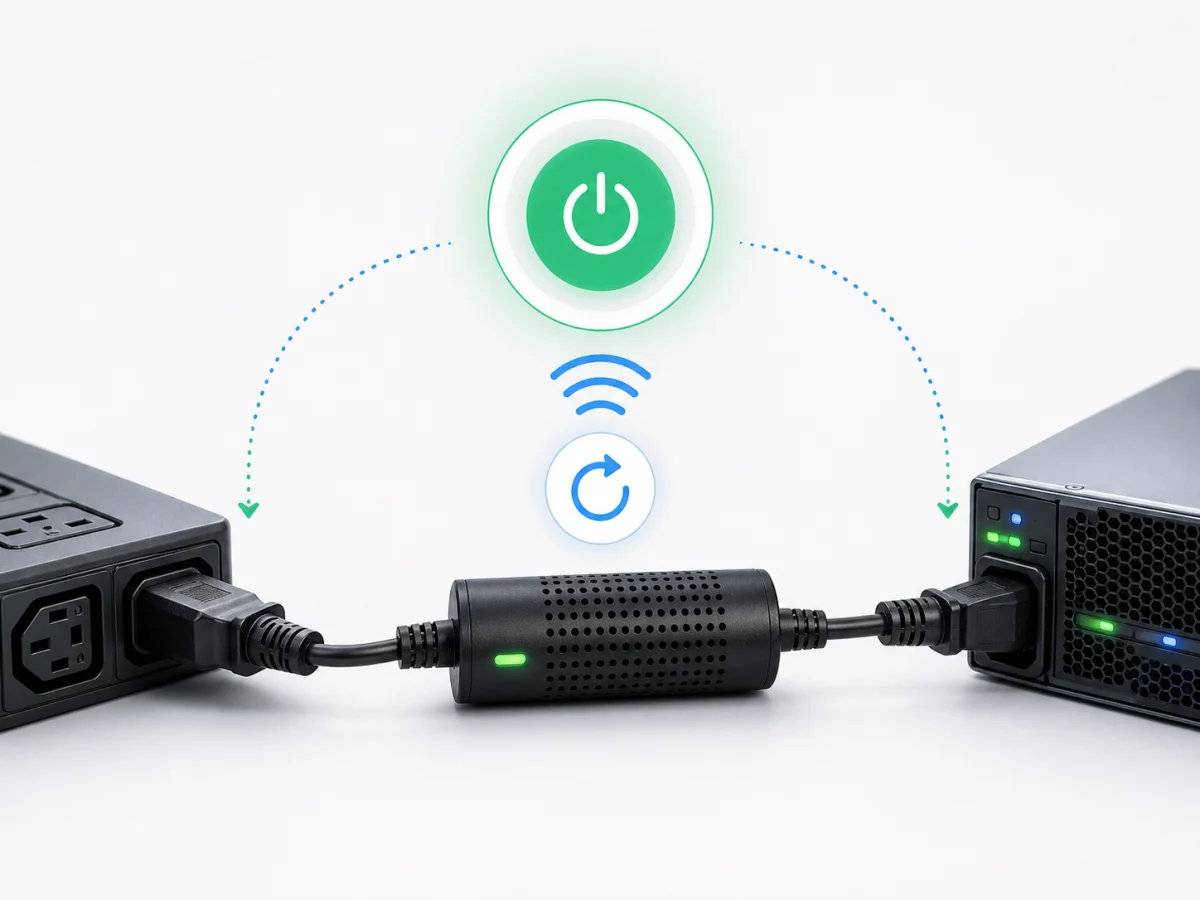
For a compatible installation, Smart Kablo can open and restore the input power path and provide measured electrical context. It cannot change BIOS settings, press the motherboard's logical power button, enter an encryption password or guarantee that the operating system and applications will start successfully.
The connected load must remain within the 5 A continuous-current limit. Confirm source and equipment connectors, voltage, frequency, earth, normal current and startup current. Remote access should follow the current documented interface and an organisation-owned security design.
If the PC still does not start
- Confirm the setting was saved and was not reset by a firmware update or CMOS fault.
- Test from a full G3 mechanical-off state, following the vendor procedure.
- Check whether the UPS or upstream controller delays or suppresses output restoration.
- Review power-button, ErP, deep-sleep and fast-start settings.
- Check POST indicators and the PSU with qualified service personnel.
- Verify the machine did not start but stop at a pre-boot prompt.
Is AC Recovery the same as Wake-on-LAN?
No. AC Recovery responds to power returning; Wake-on-LAN depends on standby power and a network wake path.
Will every laptop support it?
No. Laptop charging and firmware behaviour differ substantially; use only the manufacturer's documented feature for the exact model.
Does this create automatic recovery?
No. Starting the hardware is not proof that storage, networking or applications recovered.