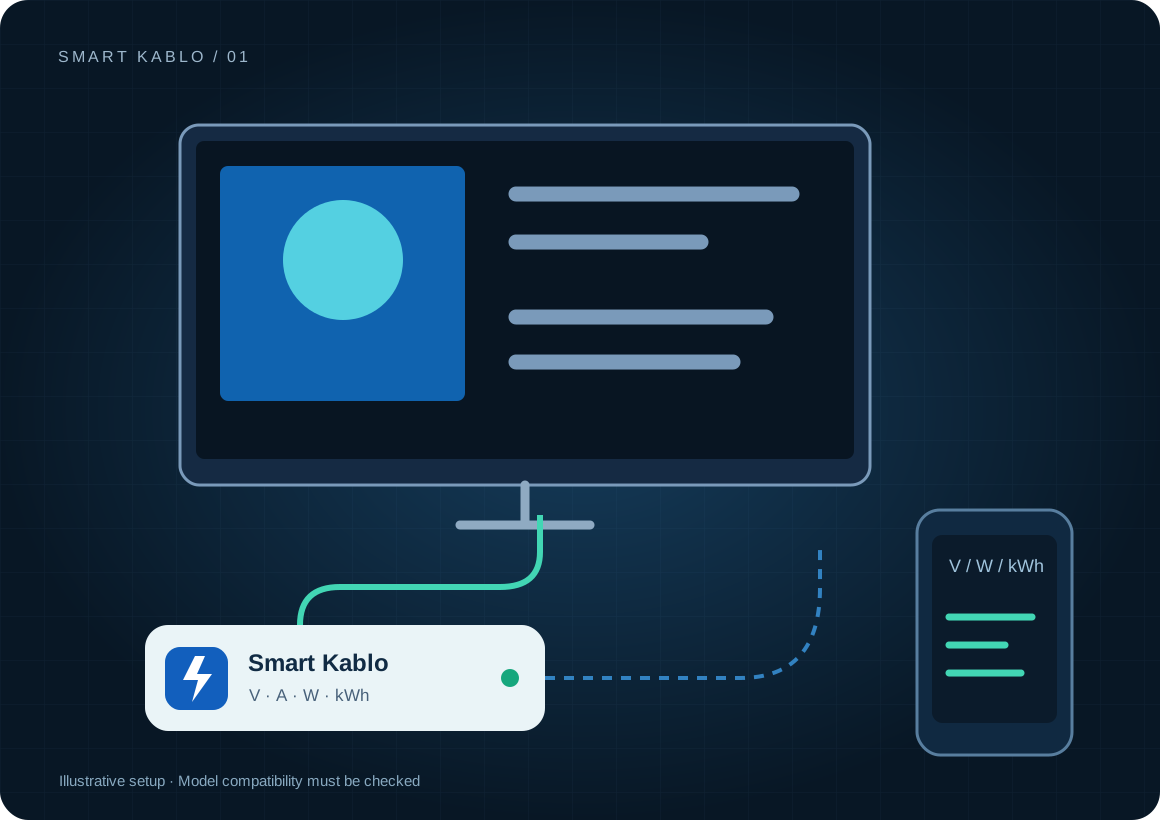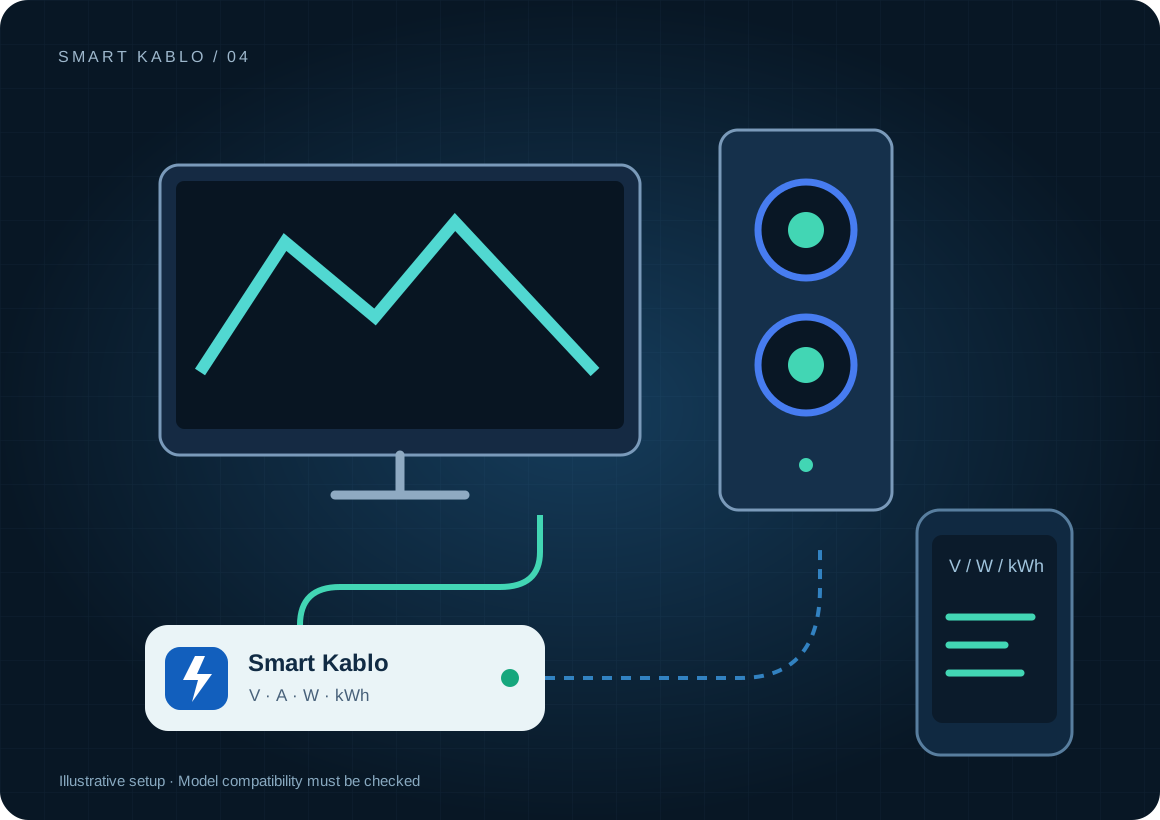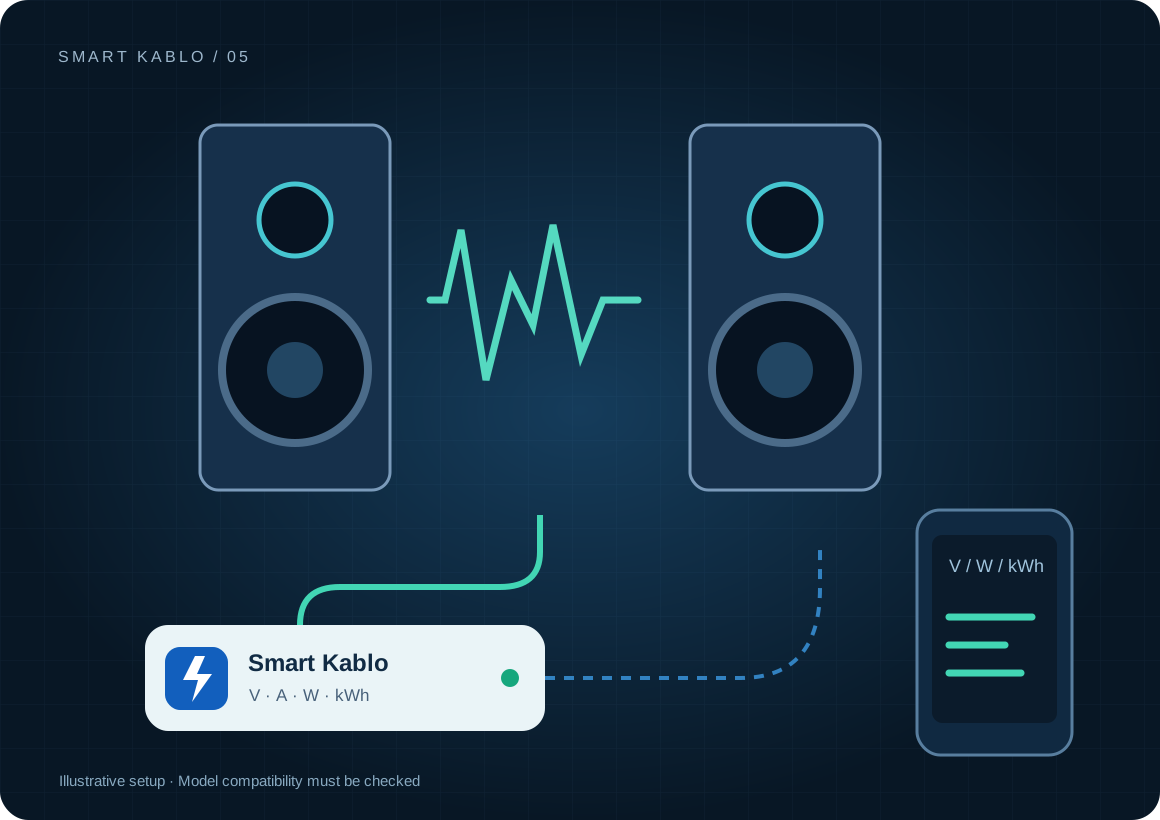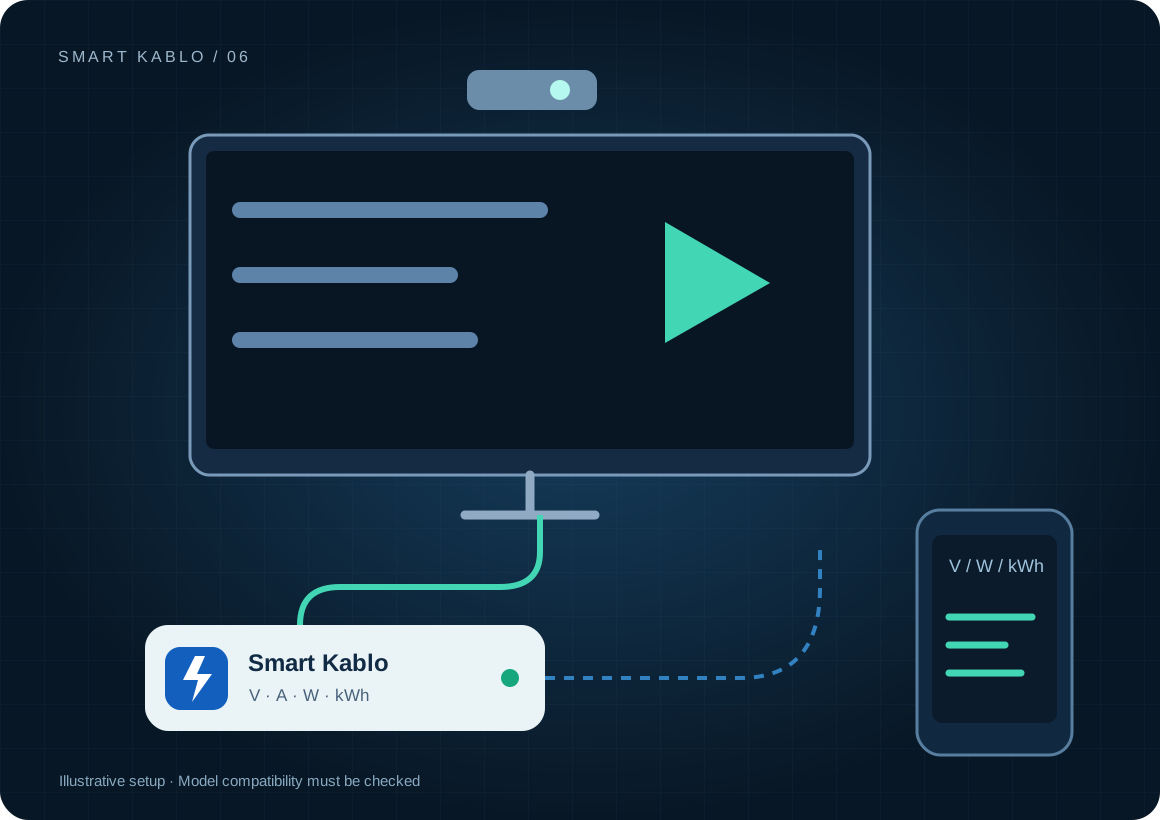
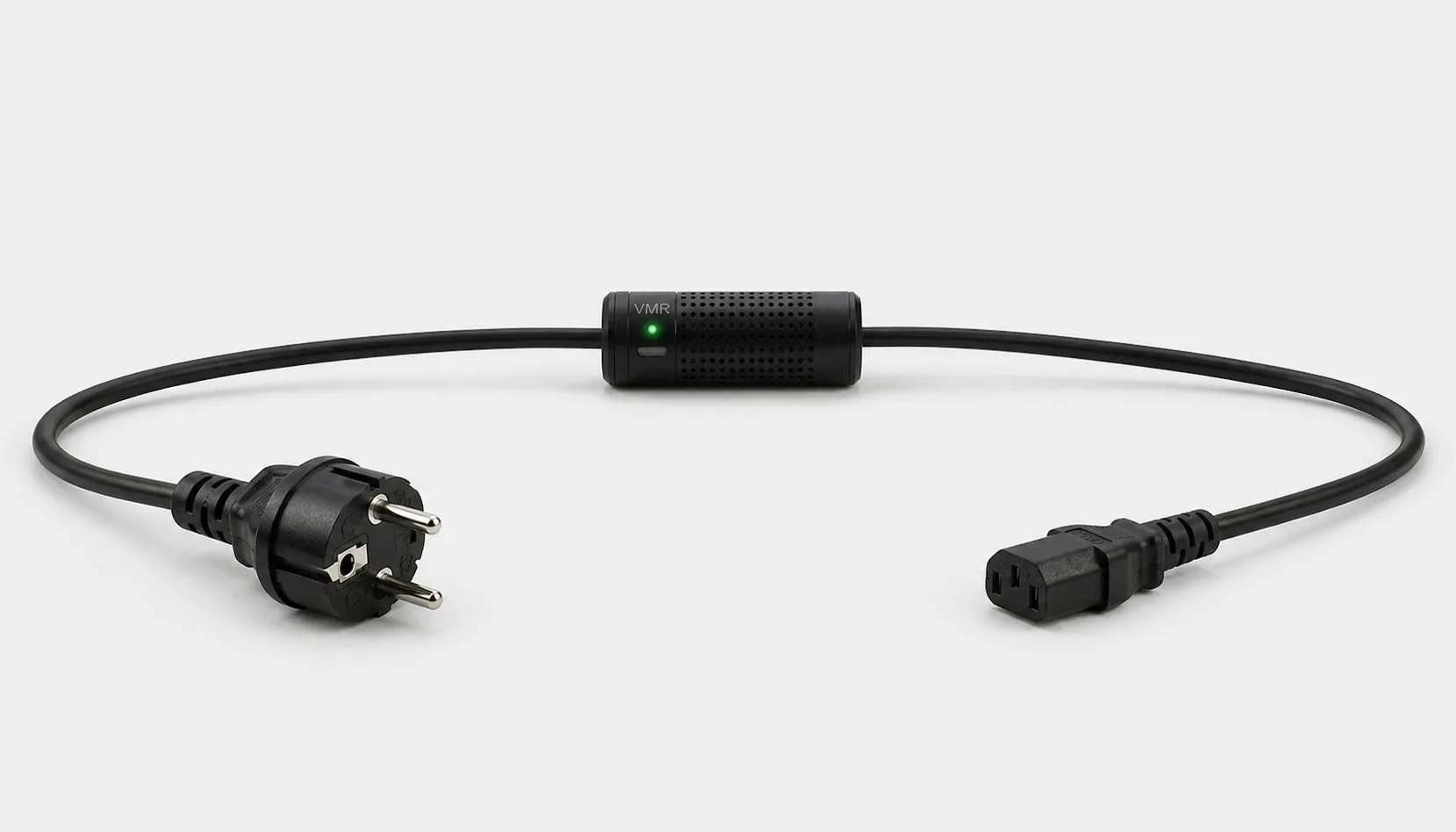
Smart Kablo provides power measurement and remote supply control for compatible room equipment. Shut down an interactive board’s computer gracefully. For projectors, follow the manufacturer’s shutdown and any required cooling procedure.
Read the room timetable alongside the energy record.
A room with no booking may still have equipment switched on. Conversely, low consumption can simply indicate sleep mode rather than a fault. Match lesson or meeting times with measurements to identify actual out-of-hours consumption.
The board, internal computer, external presentation PC and audio system may not share one supply. Record those boundaries. A measurement from the board should not be described as a complete room total unless it includes every relevant load.
Which equipment can be considered?
| Equipment / measurement point | Measurement boundary | Commissioning check |
|---|---|---|
| Interactive board / display | Screen and components on the same inlet | C14 inlet and rated input |
| Projector | Projector AC consumption | Model-specific shutdown, status lights and cooling |
| Presentation computer | The computer’s separate supply | Sessions, updates and graceful OS shutdown |
One projector cooling time does not apply to every model. Some manufacturers offer rapid shutdown on specific products; others have different requirements. Follow the actual model’s manual.
Connector and load checks
The current C13-output Smart Kablo requires a C14 equipment inlet. Assess rated input, startup demand and continuous load against the 5 A limit. At 230 V, 5 A corresponds to 1,150 VA of apparent power; this is not a blanket 1,150 W load approval. Do not assume a direct fit with C5, C7, DC or other locking connectors.
Read the IEC connector guide →Four steps after a lesson or meeting.
- Finish the presentation, save work and close the user session.
- Shut down the board computer or projector through its own controls.
- Check the required status-light indication and any fan or cooling completion condition.
- Disconnect the supply if appropriate. At the next startup, verify the image, input source and computer state.
Cutting the supply is not a graceful shutdown for every device in the room. The relay does not independently assess projector temperature. A timetable automation must also account for extended meetings and maintenance.
Remote Smart Cloud / Android control needs working Wi-Fi, internet access and authorised account access. Local interfaces and integrations depend on the installed version and network design.
Electricity use and cost calculator
The example assumes one device averaging 180 W for 6 hours and 2 W during the remaining hours. Over 30 days this gives 33.48 kWh. It is not a board or projector test result. Enter measured power and the actual number of days.
Cost = measured kWh × your electricity rate
A protection layer at the supply
Automatic relay cutoff on overvoltage
When overvoltage is detected, Smart Kablo automatically switches the relay off and disconnects the connected equipment supply. This adds a protection layer that helps limit exposure to excessive voltage.
- 01Overvoltage detected
- 02Relay switches OFF
- 03Equipment supply disconnected
Automatic overvoltage cutoff disconnects the room equipment supply to help limit exposure. This protective interruption is different from normal end-of-session shutdown; keep following the projector’s normal shutdown process in daily use.
Verify the protection threshold and restoration behaviour in the installed device settings. This function does not supply backup power or guarantee protection against lightning or every transient surge. Assess required UPS and suitable surge-protection hardware separately.
Start with a small pilot
Choose one classroom or meeting room. Log bookings, on-time and kWh for a week. Give the responsible user a short closing checklist. After changing unnecessary on-time, compare the results under similar use conditions.
Document the actual model, inlet, nameplate current and startup behaviour before extending the rollout. Product documents · Controlled power intervention guide
Frequently asked questions
Can I switch a projector off immediately with the relay?
For normal shutdown, use the projector’s own power-off command first. Complete its status-light and any cooling requirements before disconnecting. There is no single waiting time for every model.
Does one reading include the board and built-in computer?
It may include both when they share the same AC inlet. An external computer or audio system on another supply needs a separate measurement.
Is timetable-based control already built in?
A ready-made timetable integration is not implied. It needs separate implementation and testing, including extended sessions and graceful shutdown conditions.
What does Smart Kablo do when overvoltage is detected?
When overvoltage is detected, Smart Kablo automatically switches the relay off and disconnects the connected equipment supply. This adds a protection layer that helps limit exposure to excessive voltage. Verify the protection threshold and restoration behaviour in the installed device settings. This function does not supply backup power or guarantee protection against lightning or every transient surge. Assess required UPS and suitable surge-protection hardware separately.