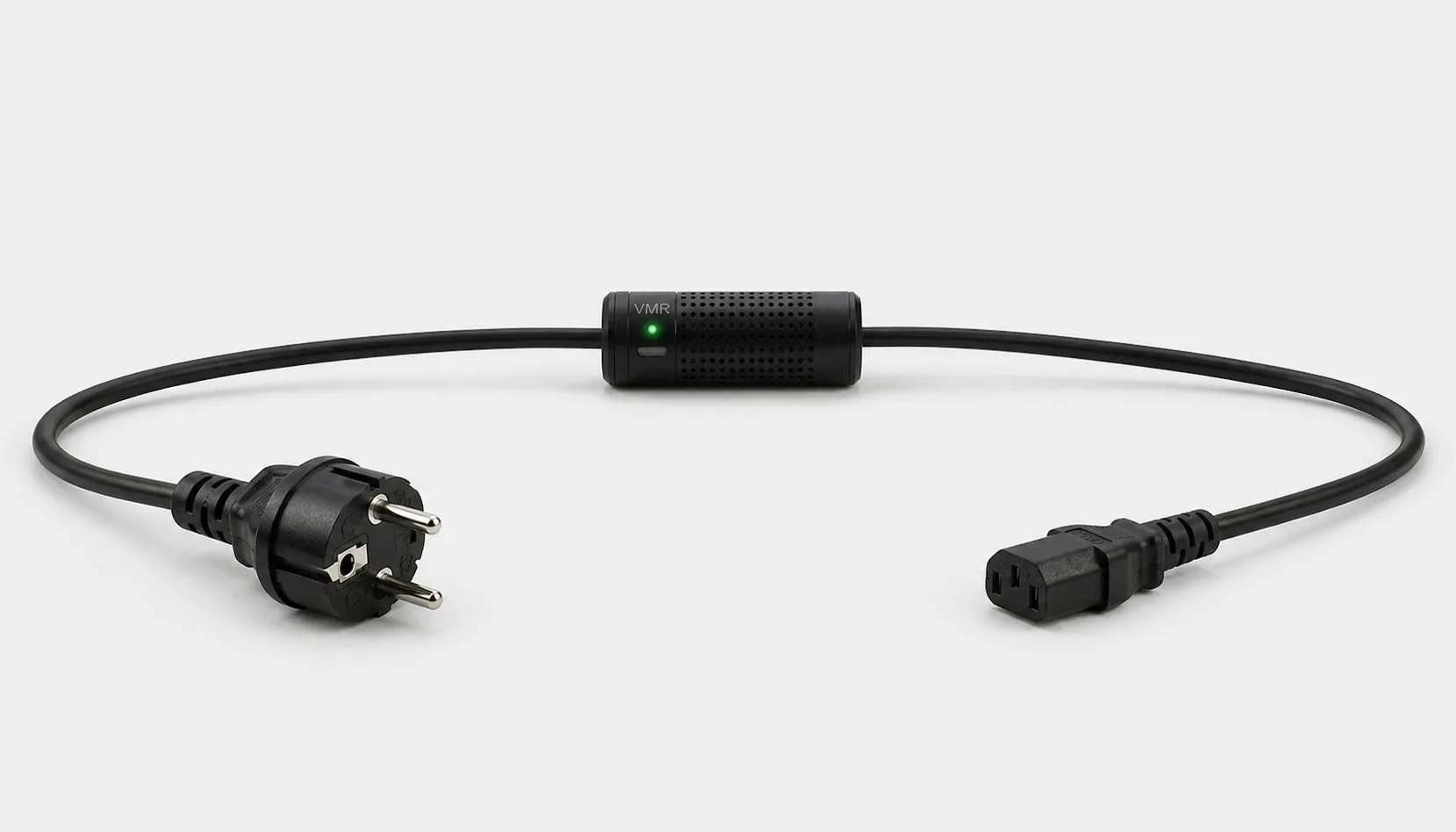
To estimate a computer’s daily energy use, multiply the average watts in each operating state by the hours spent in that state. Add the results and divide by 1,000. Include the monitor if it has a separate supply. For a changing workload, a more reliable approach is to compare the kWh counter at the start and end of a normal usage period.
How many watts does a computer use?
No single watt value applies to every computer. CPU and graphics-card load, screen brightness, connected peripherals and power settings affect consumption. The same desktop can draw different amounts while editing documents, gaming or rendering. Extending one instantaneous reading across an entire day can therefore mislead.
Watts express power at a particular moment; kWh express energy used over time. A load assumed to draw a constant 100 W for 10 hours uses 1 kWh. This calculation does not mean that your actual computer always operates at a constant power level.
Does a 750 W power supply always consume 750 W?
The wattage on a PSU describes its output capacity. It does not mean the computer continuously draws that amount. Component demand and power-supply efficiency affect the actual power taken from the outlet. CPU or GPU consumption figures in software may also exclude parts of the system’s total mains input.
A laptop adapter’s rating is not its continuous consumption either. While the battery is charging, energy drawn from the outlet includes both running the computer and storing energy in the battery. When comparing a laptop with a desktop, use the same task, comparable screen usage and the same duration. Similar starting and finishing battery charge levels make a laptop comparison more meaningful.
Distinguish idle, sleep, shutdown and disconnected power
| State | What happens? | What should you measure? |
|---|---|---|
| Active use | Applications and hardware perform the workload | Use an average for your own work |
| Powered on but idle | The system runs and background tasks may continue | A dark display does not prove that the computer is asleep |
| Sleep | The computer enters a supported low-power state | Hardware, wake events and settings affect the result |
| Shut down through the OS | Normal shutdown finishes, but the supply may remain connected | Standby and USB power may continue |
| AC supply disconnected | No power is delivered through the selected supply path | Consider a separate monitor and the meter’s own consumption |
Do not assume every computer uses the same power in sleep. Overnight updates or scheduled tasks may wake the system. Switching the supply off through a relay does not replace operating-system shutdown. Save your files and complete normal shutdown; follow the remote PC shutdown guide when working remotely.
Daily and monthly PC energy use: an explicit worked example
The following values demonstrate the calculation. They are neither typical PC consumption figures nor a product test result. Assume the computer draws 150 W during 6 active hours, 45 W during 2 idle hours and 2 W during the remaining 16 hours.
Separate monitor: 25 W × 8 hours ÷ 1,000 = 0.200 kWh/day
Combined: 1.022 + 0.200 = 1.222 kWh/day
30 days with the same pattern: 1.222 × 30 = 36.66 kWh
The monitor is calculated separately in this example. If your measurement already includes both the PC and monitor, do not add the monitor again. If weekends differ, calculate working days and weekends separately and add them. Energy cost is the period’s kWh multiplied by your applicable electricity rate per kWh.
Calculate energy use for your own computer
The initial values are the mathematical example above. Replace them with your measured average power and daily hours. Active and idle time together cannot exceed 24 hours; remaining time is calculated automatically. Enter the measured sleep or shutdown power in the field for the remaining time.
If the monitor is already included in the total measurement, set monitor power to 0. If measured separately, enter its usage time too; monitor standby outside that period is not included in this simple model. If one value represents several remaining states, use an average weighted by their durations. The tariff field is optional; check whether your rate includes taxes and other charges. Select the currency that matches the rate you enter.
Measure actual consumption over several days of kWh readings
- Choose the measurement boundary. Decide whether you are monitoring only the PC or the workstation including the monitor. A USB-powered accessory may already be included in the PC measurement.
- Record the starting point. Note the date, time and kWh counter. You do not have to reset the counter.
- Use the computer normally. Include work, gaming, overnight standby and unused days. A day spent only running heavy benchmarks does not represent a normal week.
- Finish at the same time of day. Subtract the initial kWh reading from the final one. Note missing records and changes in usage.
For example, if the counter rises from 20.000 kWh to 24.500 kWh, energy used over the measured interval is 4.500 kWh. These are also illustrative readings. For choosing watt and energy recording features, see the energy meter guide; for remote consumption history, see the Wi-Fi power meter guide.
Measure the computer’s supply with Smart Kablo
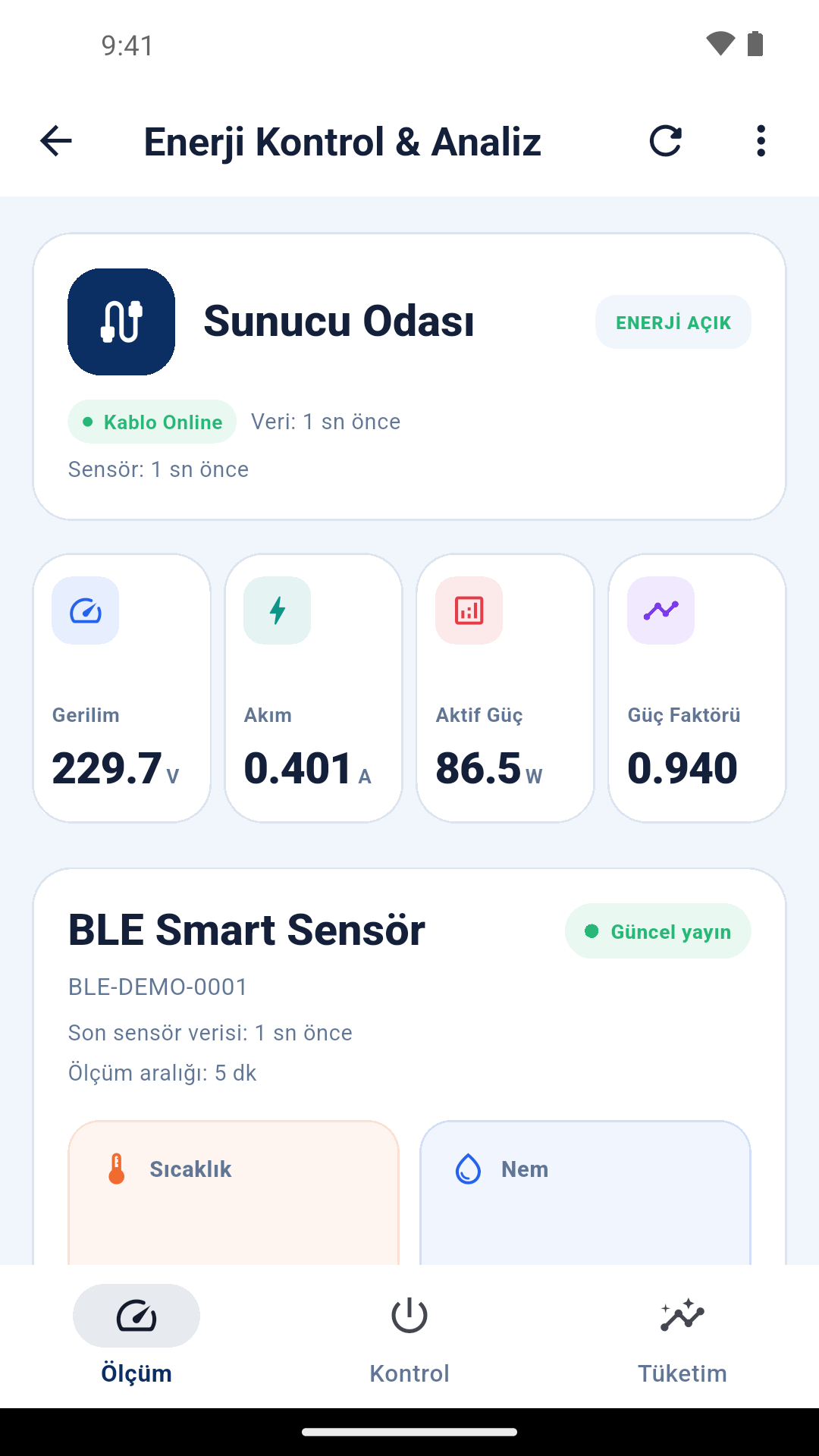
Smart Kablo monitors voltage, current, active power and power factor on compatible equipment and provides access to energy records through the supported interface. Consider the Schuko–C13 model for a suitable computer with a C14 inlet supplied from a wall outlet. The cable’s C13 output connects to the equipment’s C14 inlet.
Current models have a 5 A continuous-current limit. The nameplate current, connectors and startup load must be suitable. Laptop adapters may use C5, C7 or DC connections; do not assume direct compatibility with every laptop. For other measurement options for plug-in devices, read the plug-in power meter guide.
Compare the same workload when reducing consumption
Start by reviewing screen-on time, sleep settings and unnecessary background tasks. After changing a setting, measure again under a similar workload. A lower total in a week when you worked less does not isolate the saving from that setting; do not assume a fixed saving percentage.
If you are planning for many office computers together, use the after-hours energy guide for a PC fleet. For one computer, first establish your own daily usage pattern.
Frequently asked questions about PC power consumption
How much electricity does a gaming PC use per month?
There is no single result without knowing gaming time, hardware load and the computer’s state during the remaining hours. Calculate with your own average power or measure the kWh difference over a normal usage period.
Is the monitor included in the computer’s measurement?
That depends on the measurement point. A measurement at only the PC’s inlet excludes a separately powered monitor; a shared measured supply may include both.
Does a shut-down computer always use zero power?
Shutting down through the operating system does not disconnect the mains supply. Measure standby consumption on your own equipment and account for connected peripherals.