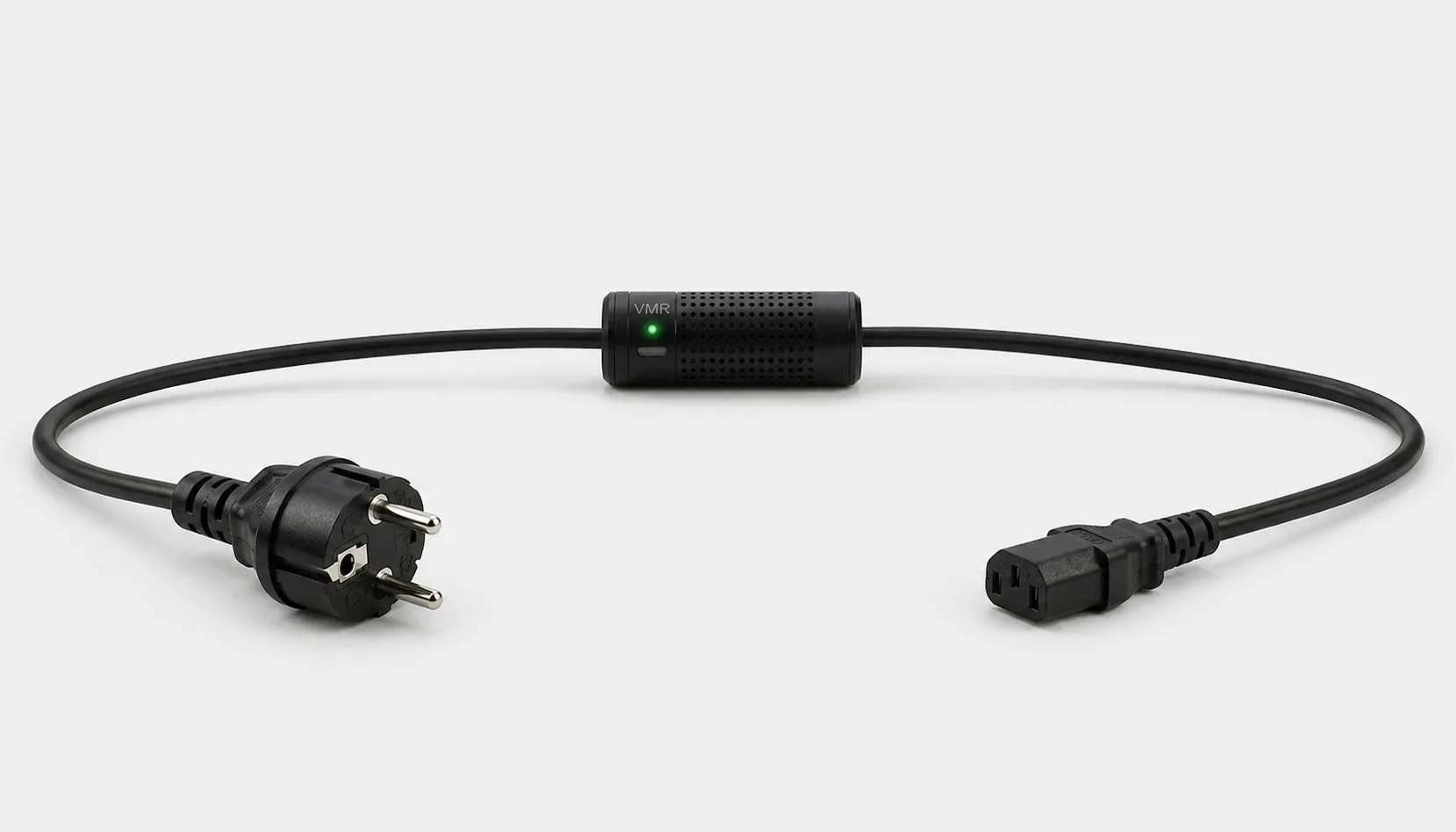
To shut down a computer safely from a remote location, save your files, finish running tasks and use the Windows Shut down option in an authorised remote desktop session. After verifying that shutdown is complete, disconnect the supply through Smart Kablo if necessary. Relay control does not shut down the operating system, and restoring power does not guarantee that the PC will start automatically.
What do you need to shut down a computer remotely?
The target computer must be on, its network connection must work, and your remote-access method must already be configured. Knowing only its name or IP address is not enough. Use an account with shutdown permission on your own computer or one you are authorised to manage. Check for other users’ work on a shared office PC.
For Windows built-in Remote Desktop, the target edition matters: Pro, Enterprise and Education support incoming connections; Home cannot act as a Remote Desktop host. Setup and access requirements are explained in Microsoft’s Remote Desktop documentation. Use your organisation’s approved remote-access or VPN route and preserve the existing security settings.
The remote computer may run more than the applications visible on your desktop. Shared folders, a network printer, overnight backups or another user’s tasks may depend on it. Before choosing a shutdown time, check who these services affect. A blank screen does not show that the computer is unused. If you manage several PCs, keep a short list matching computer names to physical locations.
Sleep, hibernation, shutdown and relay control compared
Low-power states serve different purposes. Sleep may suit a short break before resuming work; if you plan to disconnect the electrical supply, use a normal operating-system shutdown first.
| Action | What does it do? | What should you check? |
|---|---|---|
| Sleep | Enters a low-power state so work can resume quickly. | Do not treat it as a completed shutdown. |
| Hibernation | Preserves the working state while using less energy than sleep. | It may not be available on every device; test resuming first. |
| Windows shutdown | Runs the operating system’s shutdown process. | Check unsaved work and updates. |
| Relay power cutoff | Disconnects the electrical supply to the computer. | It does not close running applications gracefully. |
For Windows options and device support, see Microsoft’s explanation of shutdown, sleep and hibernation.
A safe five-step sequence for remote PC shutdown
- Connect to the correct computer. Sign in through your authorised remote-access tool. Check the computer name and desktop so you do not shut down your local computer or phone instead.
- Finish and save your work. Save documents and wait for file transfers and backups to complete. If rendering, data processing or an update is in progress, choose the shutdown time accordingly. Coordinate with other users if they have open tasks.
- Shut down through the operating system. On the remote Windows desktop, use Start → Power → Shut down when available. If your access policy hides the menu, use the method approved by your administrator. Read application save prompts and avoid forcing shutdown.
- Verify that shutdown has finished. A disconnected remote session alone is not proof. Confirm the PC’s state through an on-site check, a supported device-management view or a monitoring method you have already validated. Wait if an update is still running.
- Disconnect the supply if needed. Once the PC is confirmed off, select the correct Smart Kablo in Smart Cloud or the app. Check current connection information, turn off the relay and monitor the command result. Skip this step when disconnecting the supply is unnecessary.
Run your first test beside the computer or with on-site support available. Observing shutdown and reconnection on your own equipment helps you avoid an unexpected situation when working remotely.
Which part of this process does Smart Kablo handle?
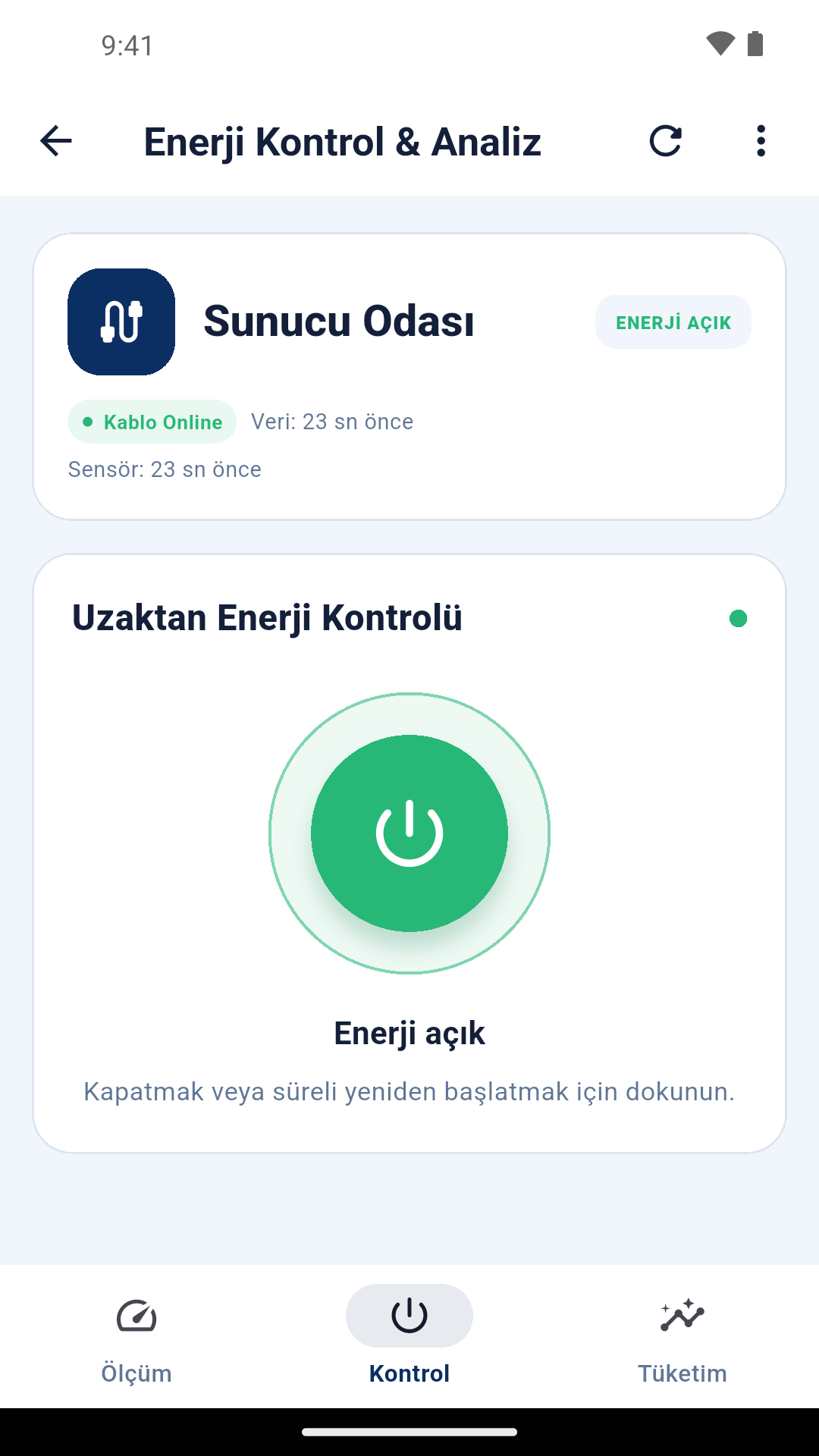
Smart Kablo measures the electrical supply and manages it through a relay. It is not remote desktop software that sends a shutdown command to Windows. Cutting power to a running computer can lose unsaved work and interrupt ongoing operations. Do not use the app’s power button as the Windows Shut down button.
For a grounded wall outlet, consider the Schuko–C13 model; for a suitable C13 female UPS/PDU outlet, consider the C14–C13 model. The C13 output connects to the computer’s C14 inlet. Check the 5 A continuous-current limit together with the equipment nameplate current and startup current. The PSU’s wattage rating alone does not establish compatibility.
You can view the relay screen and usage requirements on the Smart Kablo mobile app page. To compare plug-style options, read the Wi-Fi smart plug guide.
Does a lost connection mean the computer has shut down?
No. A remote-access window closing, the PC dropping off the network or a ping stopping can have several causes. A low watt reading alone does not prove that the operating system is off either. If its state is unclear, investigate the connection and the computer’s actual condition before using the relay to cut power.
Keep the control route available. If the PC you are shutting down also acts as a VPN server or access gateway, shutdown may remove that route. The router, Wi-Fi access point and Smart Kablo’s internet connection must continue working. Identify which supply powers each device beforehand and retain an on-site access option for recovery.
Plan how to turn it back on before shutting it down
Restoring electricity does not start every PC automatically. BIOS/UEFI support and AC Power Recovery settings vary by model; test the behaviour on your computer. For setup details, read automatically starting a PC when power returns; for alternatives, see the guide to turning on a powered-off computer remotely.
If you plan to shut down an office PC on Friday evening and access it remotely on Monday morning, test the startup method on Friday. Restoring electricity, starting Windows, establishing the network connection and reopening the remote session are separate checkpoints. A startup screen requiring local intervention may be difficult to resolve remotely. Watch for that behaviour during the test and identify a support person you can contact if needed.
If your goal is to reduce overnight consumption, measure comparable periods before and after the change. The PC power consumption guide helps you distinguish instantaneous watts from energy in kWh over a period. Calculate the benefit from your own measurements.
Frequently asked questions about remote PC shutdown
Can I shut down my computer from a phone?
With a compatible, preconfigured and authorised remote-access tool, you can connect to the computer and shut it down through the operating system. Switching the relay off only through the Smart Kablo app is a different action.
Can Smart Kablo tell whether Windows has shut down?
It shows electrical measurements and relay state. Do not use low consumption as conclusive confirmation of Windows shutdown; verify the PC’s state separately.
Should I immediately cut power if the PC freezes?
First consider authorised remote-management options and on-site support. A necessary forced power cutoff is a fault-recovery action separate from normal shutdown and may lose data being processed.
Will shutting down the computer also disconnect Smart Cloud?
Access may remain available if Smart Kablo’s Wi-Fi and internet route keep working. Check beforehand whether the network depends on the computer you are shutting down or on the same supply.